‘Quick Look’ for LINKS.
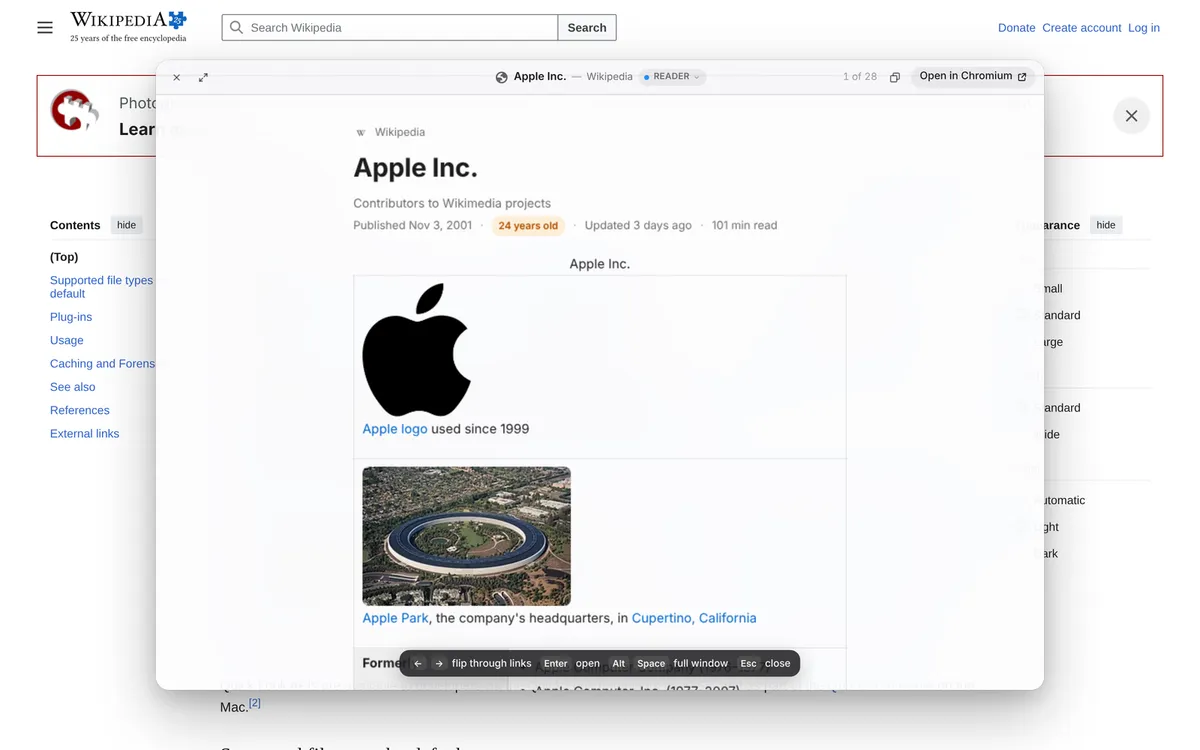
Hover a link, press Space, and the page opens in a frosted panel without leaving your tab. A free extension for Chrome, Arc, Brave and Edge.


Get it free
Version 1.2.0. For Chrome, Arc, Brave, Edge and other Chromium browsers (version 116 or later). Open source, MIT licence.
It is installed from the zip, not the Chrome Web Store: the six steps below take about a minute.
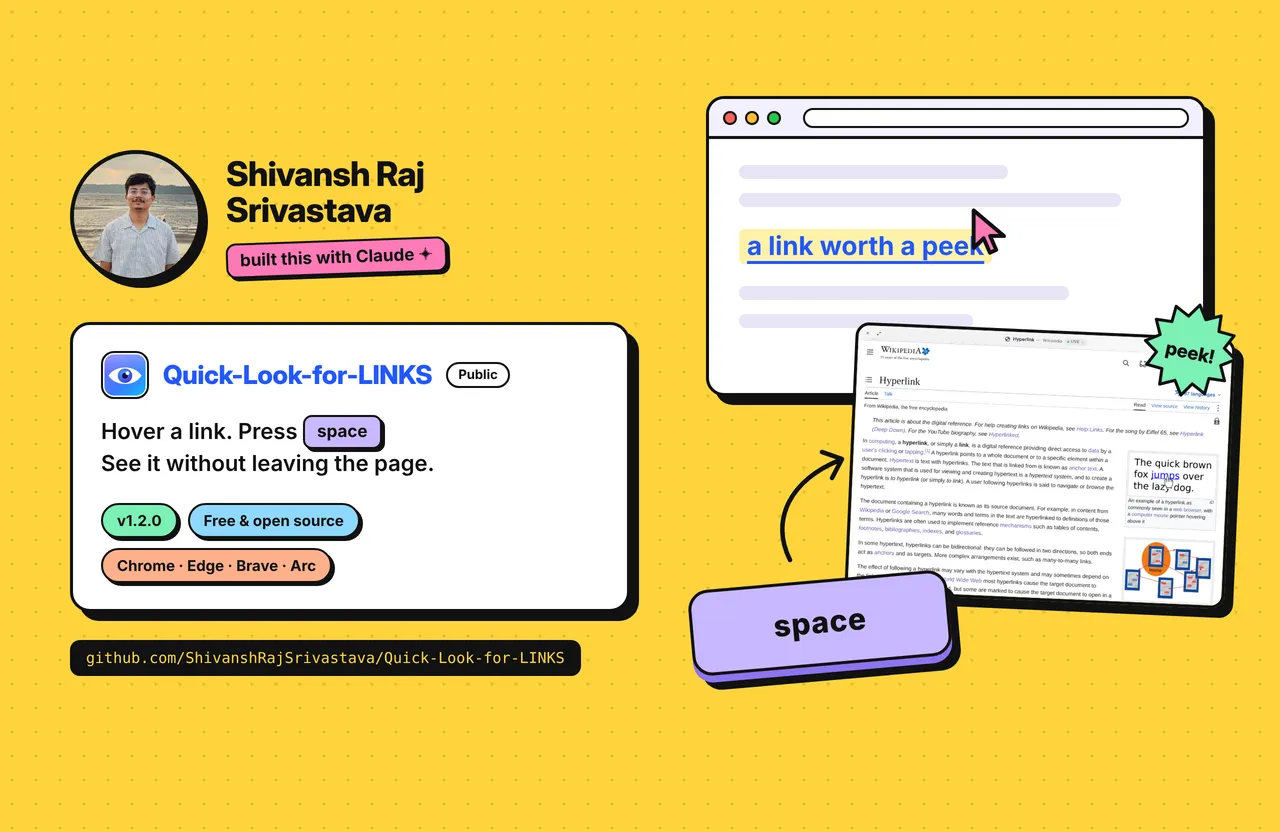
Install in about a minute.
Updating later: download the new zip, unzip it over the old folder, then click the reload icon on the extension's card. Your settings stay.
-
Download
Click Download above. The file quick-look-for-links-v1.2.0.zip saves straight to your Downloads folder.
-
Unzip it
Unzip it somewhere you will keep it, such as Documents. Do not delete the folder later: the browser loads the extension from it.
-
Open extensions
Paste this into the address bar:
chrome://extensions(Arc:arc://extensions, Brave:brave://extensions, Edge:edge://extensions). -
Developer mode
Turn on Developer mode: top right in Chrome, bottom left in Edge.
-
Load unpacked
Click Load unpacked and choose the unzipped
quick-look-for-linksfolder (the one withmanifest.jsonin it). -
Pick where it works
On the welcome page choose On every website or Only sites I approve, then try the sample links. Pin it from the puzzle-piece menu.
The keys.
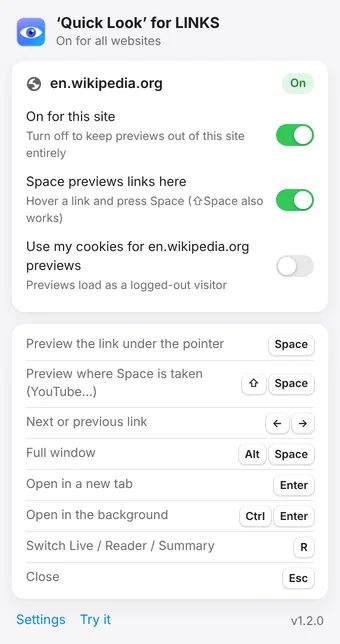
On Windows and Linux, use Ctrl for ⌘ and Alt for ⌥. Right-clicking a link also offers Quick Look this link.
- SpacePreview the link under the pointer. Space again or Esc closes it
- ⇧SpacePreview on sites that use Space themselves (YouTube, Google Docs, Figma)
- ←→Previous or next link in the same list, like Finder
- ⌥SpaceFull window (also F, or double-click the title bar)
- ReturnOpen in a new tab
- ⌘ReturnOpen in a background tab and keep flipping
- RSwitch between Live, Reader and Summary
- ⌘CCopy the link
What a preview shows.
The badge in the title bar always says which one you are looking at.
-
Live
The real page, loaded logged out in a sealed, sandboxed frame.
-
Reader
Just the article, with its main image, reading time and how old the page is.
-
Images, video, PDF
Images at full size, YouTube through its privacy-enhanced player, PDFs in the browser's viewer.
-
Summary and files
Title, description and picture; JSON and text formatted; for downloads, the file's name, type and size, without downloading it.
Private and careful.
On every website, Chrome warns that it can read and change data on all sites: previewing any link means fetching from any site. Choose Only sites I approve if you would rather not.
-
Nothing loads on hover
A preview is fetched only after you press Space.
-
Logged out
Previews send no cookies unless you allow a site in Settings.
-
Sealed off
A previewed page cannot touch the page you are on or redirect your tab. Sign-out and delete links are not loaded.
-
No servers, no analytics
Nothing leaves your computer except the request to the link you chose.
Made by Shivansh Raj Srivastava. Reader view uses Mozilla's Readability. Quick Look is a trademark of Apple Inc.; this project is not affiliated with or endorsed by Apple.